How to Get Started Using Google Gemini in 2026

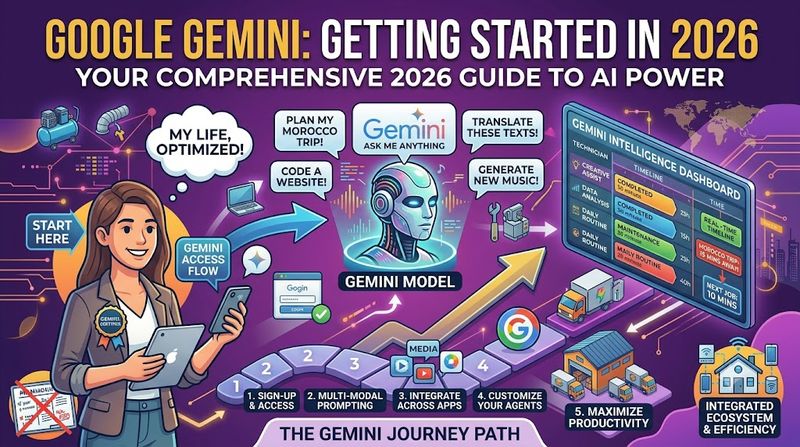
Everything you need to know to start using Google Gemini in 2026—from free chat features and Personal Intelligence to the Interactions API, Gemini Spark, and building your first AI-powered application.
What Is Google Gemini in 2026?
Google Gemini has evolved far beyond a simple chatbot. In 2026, it is Google's flagship AI ecosystem—a multimodal, agentic, and deeply integrated platform that spans the Gemini app, Google Workspace, Chrome, Android, and developer APIs. Google I/O 2026 marked a pivotal shift: Gemini is no longer just an AI that helps you write. It is an AI that helps you act.
At the center of this transformation are two major releases: Gemini 3.5 Flash, a faster and more efficient model optimized for coding and agentic tasks, and Gemini Omni, a world-first model that can create realistic video from any combination of text, images, audio, and video inputs. Alongside these models, Google launched Gemini Spark, an always-on AI agent that performs background tasks across your apps, and expanded Personal Intelligence to connect Gemini with your Gmail, Photos, Drive, and Search history for deeply personalized assistance.
Whether you are a casual user looking to boost productivity, a developer building AI applications, or a business owner automating workflows, Gemini in 2026 offers a tier and a toolset for you. Most features are free. The advanced capabilities are affordable. And the developer API is accessible with a single key.
The New Gemini Models: 3.5 Flash, Omni, and Nano Banana
Understanding Gemini starts with understanding its model family. In 2026, Google offers several specialized models, each optimized for different tasks:
Gemini 3.5 Flash
The latest flagship model, Gemini 3.5 Flash, is faster and more efficient than previous generations while offering richer, more interactive outputs. It excels at coding, agentic workflows, and generating dynamic web interfaces. Google reports it beats Gemini 3.1 Pro on coding and agentic benchmarks. It is the default model for most API calls and the backbone of Gemini Spark. A more powerful Gemini 3.5 Pro is expected to launch soon.
Gemini Omni
Gemini Omni represents a leap in world understanding and multimodal generation. Its first release, Gemini Omni Flash, can generate realistic video with accurate physics from combined text, image, audio, and video inputs. It also powers a new Avatars feature that creates videos with a digital version of yourself using your own voice. Omni is available to Google AI Plus, Pro, and Ultra subscribers, and is also integrated into YouTube Shorts and the YouTube Create App.
Nano Banana
Nano Banana is Google's on-device image generation model. It runs natively in Chrome on Android, allowing you to create or customize images instantly while browsing—no cloud round-trip required. You can ask Chrome to convert a webpage into an infographic or modify product images on the fly.
Lyria 3 and Lyria RealTime
For audio and music, Lyria 3 Pro generates up to 3-minute-long high-fidelity tracks that you can mix and customize. Lyria RealTime enables live audio generation and manipulation.
Model Selection Guide
| Use Case | Recommended Model | Availability |
|---|---|---|
| General chat, coding, reasoning | Gemini 3.5 Flash | Free & Paid tiers |
| Video generation, avatars | Gemini Omni Flash | Plus, Pro, Ultra |
| Image generation | Nano Banana / Gemini 3.1 Flash-Image | Free (Nano) / API |
| Music creation | Lyria 3 Pro | Free tier available |
| Deep research, complex analysis | Gemini 3.5 Pro (upcoming) | Ultra subscribers |
Getting Started with the Gemini App (Free)
The Gemini app is your entry point. It is available on the web, Android, iOS, and now natively on macOS. In 2026, the app received a "Neural Expressive" design overhaul with smoother animations, more vibrant colors, new typography, and haptic feedback. Responses are reformatted to put the most important information at the top, with imagery, interactive timelines, narrated videos, and dynamic graphics.
Step 1: Download and Sign In
- Go to gemini.google.com or download the Gemini app from the App Store or Google Play.
- Sign in with your Google account.
- You now have access to the free tier, which includes Gemini 3.5 Flash for text chat, basic image understanding, and limited image generation.
Step 2: Try Gemini Live
Gemini Live is the voice-enabled mode. Tap the microphone icon to have a natural, spoken conversation. In 2026, Google added new regional dialects and improved latency, making it feel closer to talking to a human assistant. This is ideal for hands-free use while driving, cooking, or brainstorming.
Step 3: Explore Visual Responses
Ask Gemini to explain a complex concept, and it will generate interactive visuals directly in the chat. For example, type "Explain quantum computing with a visual diagram" and Gemini produces an explorable graphic you can interact with.
Step 4: Use Gems for Reusable Prompts
Gems are saved prompt templates. Create a Gem for recurring tasks—like "Write a professional email" or "Summarize this article"—and reuse them with one tap. This saves time and ensures consistency.
Unlocking Personal Intelligence
The most transformative feature of Gemini in 2026 is Personal Intelligence—the ability for Gemini to access your Google apps and provide answers grounded in your actual data. This is not generic AI. This is AI that knows your context.
How It Works
When you enable Personal Intelligence, Gemini can connect to:
- Gmail: Search your emails, summarize threads, find attachments, track approvals
- Google Photos: Recognize objects, people, and contexts in your images
- Google Drive: Search documents, extract information, generate summaries
- Google Search: Understand your search history and preferences
- Google Calendar: Schedule meetings, find conflicts, suggest optimal times
A Real-World Example
Google's VP of Gemini, Josh Woodward, demonstrated this at I/O 2026: while at a tire shop, he asked Gemini for his Honda minivan's tire size. Gemini searched his Google Photos, recognized his car model from a family trip photo, checked his Gmail for the purchase receipt, and suggested two tire options based on his driving habits—all in seconds.
How to Enable It
- Open the Gemini app.
- Go to Settings → Personal Intelligence → Connected Apps.
- Choose which apps to link. It is off by default, and you control every connection.
- Nothing trains on your data without explicit consent. Google emphasizes that your personal data stays yours.
Personal Intelligence is rolling out to international Google AI plan subscribers, with some regional restrictions. Check eligibility in your account settings.
Meet Gemini Spark: Your Always-On AI Agent
Gemini Spark is Google's answer to the agentic AI wave. It is an "always-on" AI agent that performs work for you in the background while you focus on other tasks. Think of it as a personal assistant that does not just answer questions—it completes tasks.
What Gemini Spark Can Do
- Send emails and draft responses based on your writing style
- Scan monthly credit card statements for hidden subscription fees
- Create summaries of your meeting notes from Google Meet recordings
- Manage your Gmail and Calendar like a personal executive assistant
- Connect to third-party apps like Canva, Instacart, and OpenTable
- Access local files on macOS through the Gemini desktop app
Spark runs on Gemini 3.5 Flash and integrates deeply with Google Workspace. It is rolling out to trusted testers first, followed by a beta launch for US-based Google AI Ultra subscribers. If you are not an Ultra subscriber yet, you can join the waitlist through the Gemini app.
Gemini Daily Brief
Alongside Spark, Daily Brief is a new agent that gathers information from your connected apps and delivers a prioritized summary of your day each morning. It pulls from Calendar, Gmail, and task lists, organizing rundowns based on your goals. You can give feedback with thumbs-up or thumbs-down to improve future briefings.
Gemini Inside Google Workspace
In 2026, Gemini is not a separate tool you open—it is built into every Google Workspace app you already use. This integration is where Gemini delivers the most immediate productivity gains:
Gmail
- Summarize threads: Open a 30-reply email chain and get key points, decisions, and next steps instantly
- Search with natural language: Ask "Who approved the marketing budget last month?" and Gemini searches your emails for the answer
- Help Me Write: Draft emails from a prompt, with tone and length controls
- AI Inbox (coming soon): Automatic prioritization, bill flagging, and deadline highlighting
Google Docs
Write, rewrite, and summarize directly in the document. Ask Gemini to "make this more persuasive" or "convert this into a bullet-point summary." The free tier includes basic writing assistance; paid tiers add advanced proofreading and style improvements.
Google Sheets
Generate formulas from plain English descriptions. Ask "Calculate the average revenue per customer by region" and Gemini writes the formula. Analyze datasets and generate charts without writing a single line of code.
Google Slides
Create entire presentations from a single prompt. Describe your topic, audience, and key points, and Gemini generates a slide deck with layouts, images, and speaker notes.
Google Meet
Automatically record notes, extract action items, and summarize decisions. No more frantically typing during meetings.
Google Classroom
For educators, Gemini creates podcast-style lessons automatically. Set the grade level, topic, and length, and Gemini writes and narrates the lesson. Students can listen on the go or generate flashcards from the content.
Getting Started with the Gemini API
For developers, the Gemini API is the gateway to building AI-powered applications. In 2026, Google introduced the Interactions API, a new way to interact with Gemini models that replaces the older generateContent API. It is cleaner, more powerful, and designed for agentic workflows.
Step 1: Get Your API Key
- Go to Google AI Studio.
- Sign in with your Google account. AI Studio automatically creates a project and API key for new users.
- Copy your API key from the API keys page.
- Set it as an environment variable:
export GEMINI_API_KEY="YOUR_API_KEY"
Step 2: Upgrade to Paid Tier (Optional)
The free tier includes generous rate limits for experimentation. To increase limits for production apps:
- Click Set up billing in AI Studio.
- Create or link a Cloud Billing account and add a payment method.
- Prepay a minimum of $10 in paid credits.
- Monitor usage under Dashboard > Usage.
Step 3: Install the SDK
Google provides official SDKs for Python and JavaScript, plus full REST API access:
Python
pip install -U google-genaiJavaScript
npm install @google/genaiUnderstanding the Interactions API
The Interactions API is the new standard for communicating with Gemini models. Every exchange is an "interaction" that contains metadata, usage statistics, and a step-by-step history of the turn. This design makes it ideal for building transparent, auditable AI applications.
Key Concepts
- Interaction: A single turn (request + response) with the model
- Steps: The sequence of operations within an interaction (thought, model_output, function_call, etc.)
- Stateful mode: Server manages conversation history using
previous_interaction_id - Stateless mode: Client manages full history by setting
store=false
Your First API Call
Here is the simplest possible interaction with Gemini 3.5 Flash:
Python
from google import genai

client = genai.Client()

interaction = client.interactions.create(
    model="gemini-3.5-flash",
    input="Explain how AI works in a few words"
)
print(interaction.output_text)
JavaScript
import { GoogleGenAI } from "@google/genai";

const ai = new GoogleGenAI({});

const interaction = await ai.interactions.create({
  model: "gemini-3.5-flash",
  input: "Explain how AI works in a few words",
});
console.log(interaction.output_text);
REST
curl -X POST "https://generativelanguage.googleapis.com/v1beta/interactions" \
  -H "x-goog-api-key: $GEMINI_API_KEY" \
  -H 'Content-Type: application/json' \
  -d '{
    "model": "gemini-3.5-flash",
    "input": "Explain how AI works in a few words"
  }'
The response includes the full interaction object with steps, usage statistics, and the generated text. SDKs provide convenience properties like interaction.output_text for quick access.
Hands-On Code Examples
1. Streaming Responses
Streaming delivers text chunks as they are generated, creating a more fluid user experience:
from google import genai

client = genai.Client()

stream = client.interactions.create(
    model="gemini-3.5-flash",
    input="Explain how AI works",
    stream=True
)
for event in stream:
    print(event)
2. Multi-Turn Conversations
Use previous_interaction_id to maintain context across turns:
from google import genai

client = genai.Client()

interaction1 = client.interactions.create(
    model="gemini-3.5-flash",
    input="I have 2 dogs in my house.",
)
print("Response 1:", interaction1.output_text)

interaction2 = client.interactions.create(
    model="gemini-3.5-flash",
    input="How many paws are in my house?",
    previous_interaction_id=interaction1.id,
)
print("Response 2:", interaction2.output_text)
3. Structured Output (JSON)
Force Gemini to return valid JSON matching a schema you define:
from google import genai
from pydantic import BaseModel, Field
from typing import List, Optional

class Recipe(BaseModel):
    recipe_name: str = Field(description="Name of the recipe.")
    ingredients: List[str] = Field(description="List of ingredients.")
    prep_time_minutes: Optional[int] = Field(description="Prep time in minutes.")

client = genai.Client()

interaction = client.interactions.create(
    model="gemini-3.5-flash",
    input="Give me a recipe for banana bread",
    response_format={
        "type": "text",
        "mime_type": "application/json",
        "schema": Recipe.model_json_schema()
    },
)

recipe = Recipe.model_validate_json(interaction.output_text)
print(recipe)
4. Function Calling
Connect Gemini to your own code by declaring functions the model can call:
import json
from google import genai

client = genai.Client()

weather_tool = {
    "type": "function",
    "name": "get_current_temperature",
    "description": "Gets the current temperature for a given location.",
    "parameters": {
        "type": "object",
        "properties": {
            "location": {
                "type": "string",
                "description": "The city name, e.g. San Francisco",
            },
        },
        "required": ["location"],
    },
}

available_functions = {
    "get_current_temperature": lambda location: {
        "location": location, "temperature": "22", "unit": "celsius"
    },
}

user_input = "What is the temperature in London?"
previous_id = None

while True:
    interaction = client.interactions.create(
        model="gemini-3.5-flash",
        input=user_input,
        tools=[weather_tool],
        previous_interaction_id=previous_id,
    )

    function_results = []
    for step in interaction.steps:
        if step.type == "function_call":
            result = available_functions[step.name](**step.arguments)
            function_results.append({
                "type": "function_result",
                "name": step.name,
                "call_id": step.id,
                "result": [{"type": "text", "text": json.dumps(result)}],
            })

    if not function_results:
        break

    user_input = function_results
    previous_id = interaction.id

print(interaction.output_text)
5. Background Execution
Run long tasks asynchronously without blocking your application:
import time
from google import genai

client = genai.Client()

interaction = client.interactions.create(
    model="gemini-3.5-flash",
    input="Write a detailed analysis of the impact of artificial intelligence on modern healthcare.",
    background=True,
)

while True:
    result = client.interactions.get(interaction.id)
    if result.status == "completed":
        print(result.output_text)
        break
    elif result.status == "failed":
        print(f"Failed: {result.error}")
        break
    time.sleep(5)
Multimodal AI: Images, Audio, Video, and Documents
Gemini's native multimodal understanding is one of its biggest advantages. It can process images, audio, video, and documents in a single request without requiring separate pipelines.
Image Understanding
Upload an image and ask questions about it:
import base64
from google import genai

client = genai.Client()

with open("sample.jpg", "rb") as f:
    image_bytes = f.read()
image_b64 = base64.b64encode(image_bytes).decode("utf-8")

interaction = client.interactions.create(
    model="gemini-3.5-flash",
    input=[
        {"type": "text", "text": "Describe what's in this image."},
        {"type": "image", "data": image_b64, "mime_type": "image/jpeg"}
    ]
)
print(interaction.output_text)
Image Generation
Generate images using the Nano Banana model:
from google import genai
import base64

client = genai.Client()

interaction = client.interactions.create(
    model="gemini-3.1-flash-image",
    input="Generate an image of a futuristic city skyline at sunset",
)

with open("generated_image.png", "wb") as f:
    f.write(base64.b64decode(interaction.output_image.data))
Video and Audio
Combine video, audio, and text in one request for rich analysis:
interaction = client.interactions.create(
    model="gemini-3.5-flash",
    input=[
        {"type": "text", "text": "Compare this local image and this remote audio file."},
        {"type": "image", "data": image_b64, "mime_type": "image/jpeg"},
        {"type": "audio", "uri": "https://example.com/audio.mp3", "mime_type": "audio/mp3"}
    ]
)
Building Agents with Gemini
2026 is the year of agentic AI, and Gemini provides multiple pathways to build agents:
Managed Agents (Antigravity)
Google's Antigravity platform is an agent-first development environment. Managed agents run in remote sandboxes with access to code execution and file management:
from google import genai

client = genai.Client()

interaction = client.interactions.create(
    agent="antigravity-preview-05-2026",
    input="Write a Python script that generates the first 20 Fibonacci numbers and saves them to fibonacci.txt. Then read the file and print its contents.",
    environment="remote",
)
Custom Agents
You can define and save custom agents with your own instructions, skills, and data sources through Google AI Studio. These agents can be deployed in your applications via the API.
Deep Research Agent
The Deep Research Agent performs autonomous multi-step research with planning and synthesis. Give it a topic, and it will search, analyze, and compile a comprehensive report.
Information Agents in Search
Google Search now includes Information Agents that create apps and visualizations on the fly to help you learn. Ask a complex question, and Search generates an interactive explainer instead of just links.
Pricing Tiers: Free vs. Pro vs. Ultra
| Feature | Free | Pro ($19.99/mo) | Ultra |
|---|---|---|---|
| Gemini 3.5 Flash | Yes | Yes | Yes |
| Basic chat & image understanding | Yes | Yes | Yes |
| Gemini Live (voice) | Limited | Yes | Yes |
| Personal Intelligence | Limited | Yes | Yes |
| Workspace AI (Gmail, Docs, etc.) | Basic summaries | Full access | Full access |
| Gemini Omni Flash | No | Yes | Yes |
| Gemini Spark (agent) | No | No | Beta access |
| API rate limits | Generous free tier | Higher limits | Highest limits |
| Lyria 3 Pro (music) | 3-min tracks | Extended | Unlimited |
Recommendation: Start with the free tier. It is powerful enough for most personal and small business use. Upgrade to Pro when you need full Workspace integration and higher API limits. Ultra is for power users and developers who need early access to agents like Gemini Spark.
Best Practices and Pro Tips
1. Start with One Feature
Do not activate everything at once. Gemini has dozens of capabilities. Pick one high-value use case—email summarization, code generation, or image creation—and master it before expanding.
2. Use Gems for Repetitive Tasks
Gems save time on recurring prompts. Create Gems for your most common requests: "Write a professional rejection email," "Summarize this research paper," or "Generate a social media post."
3. Verify Facts
AI is fast but not flawless. Always verify critical information, especially for medical, legal, or financial decisions. Use the Google Search grounding tool in the API to get citations for factual claims.
4. Test Privacy Settings
Personal Intelligence is powerful but requires data access. Review your connected apps regularly and disconnect anything you no longer need. Remember: it is off by default, and you control every connection.
5. Integrate with Workspace
The biggest productivity gains come from using Gemini inside the apps you already use. Enable Gemini in Gmail, Docs, and Sheets before exploring standalone features.
6. Use NotebookLM for Research
Pair Gemini with NotebookLM for deep research projects. Upload documents, and NotebookLM creates podcasts, summaries, and flashcards. It is a complete AI learning ecosystem.
7. Track Your API Usage
Monitor your API consumption in Google AI Studio under Dashboard > Usage. Set up billing alerts to avoid unexpected charges when you upgrade to the paid tier.
8. Use Background Execution for Long Tasks
For complex analyses or large document processing, use the background=True flag. This prevents timeouts and lets your application continue while Gemini works.
Common Mistakes to Avoid
Mistake 1: Treating Gemini Like a Search Engine
Gemini is a reasoning engine, not a search index. It excels at synthesis, analysis, and generation—not retrieving real-time facts. For current events, enable Google Search grounding or verify independently.
Mistake 2: Ignoring the Interactions API Structure
If you are a developer, do not try to use the old generateContent patterns with the new Interactions API. The step-based architecture requires a different mental model. Embrace it—it makes debugging and auditing much easier.
Mistake 3: Over-Sharing Personal Data
Personal Intelligence is tempting, but connect only the apps you actually need. Each connection increases your attack surface. Review and prune connected apps monthly.
Mistake 4: Expecting Perfection from Day One
Gemini learns from your feedback. Use thumbs-up and thumbs-down on responses. Correct mistakes in conversations. The model adapts to your style over time.
Mistake 5: Not Using System Instructions
When building with the API, always set system instructions to define the model's role, tone, and constraints. This dramatically improves output quality and consistency.
Mistake 6: Forgetting Rate Limits
The free tier has generous but real limits. If your app suddenly stops working, check your quota in AI Studio. Plan for rate limiting in production code with exponential backoff.
Conclusion: Your First 7 Days with Gemini
Google Gemini in 2026 is not just another AI chatbot. It is a comprehensive AI ecosystem that integrates into every layer of your digital life—from casual conversations in the Gemini app to autonomous agents managing your inbox, from no-code image generation to production API deployments.
The Google I/O 2026 announcements made one thing clear: Google is building toward a future where AI handles the mundane so humans can focus on what matters. Gemini Spark manages your schedule. Daily Brief prioritizes your morning. Personal Intelligence knows your context. The Interactions API lets developers build on the same infrastructure.
Here is your 7-day roadmap to get started:
- Day 1: Download the Gemini app and have your first conversation with Gemini 3.5 Flash.
- Day 2: Enable Personal Intelligence and connect Gmail. Ask Gemini to summarize your unread emails.
- Day 3: Try Gemini in Google Docs. Use "Help Me Write" to draft a document.
- Day 4: Generate your first image with Nano Banana or the API.
- Day 5: Get your API key from Google AI Studio and run your first Interactions API call.
- Day 6: Build a simple function-calling example that connects Gemini to your own code.
- Day 7: Create a Gem for your most common task and share it with your team.
Most of these features are free. The ones that are not cost less than a streaming subscription. The real investment is your time—and the return is measured in hours saved, decisions improved, and capabilities unlocked.
Start today. Gemini is already there, built into the Google account you already have. The only question is whether you will use it—or let this competitive advantage pass you by.
Related Tags

About the Author
Freya O'Neill
freya-o-neill is a technology journalist specializing in artificial intelligence, software innovation, cybersecurity, and emerging digital trends. She enjoys explaining complex technologies in clear, accessible language for both professionals and everyday readers.
Enjoyed this article?
Check out more content on our blog or follow us on social media.
Browse more articles